
-
Lesson 1: Web Foundations (HTML, CSS, JavaScript)4 Topics
-
Lesson 2: Responsive Design and Accessibility4 Topics
-
Lesson 3: Modern Front-end Development (Frameworks and State)3 Topics
-
Lesson 4: Back-end Fundamentals, Data, and Security4 Topics
-
Lesson 5: Quality, Performance, SEO, and Deployment (DevOps Basics)5 Topics
Participants 8


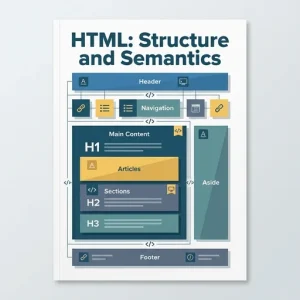
HTML (HyperText Markup Language) is the structure of a web page. It tells the browser what each piece of content is (a heading, a paragraph, a navigation menu, a form field, an image, and so on). When your HTML is semantic, it clearly describes meaning and purpose, which helps:
- People: content is easier to read and maintain.
- Assistive technologies: screen readers can understand the page better (accessibility).
- Search engines: improved understanding of your content (SEO).
- Developers: fewer “mystery
<div>s” and clearer layouts.
1) Proper document structure (the non-negotiables)
A correct HTML document has a consistent skeleton:
<!doctype html>
<html lang="en-ZA">
<head>
<meta charset="utf-8" />
<meta name="viewport" content="width=device-width, initial-scale=1" />
<title>My First Website</title>
<meta name="description" content="A simple, accessible website built with semantic HTML." />
</head>
<body>
<header>
<h1>My First Website</h1>
</header>
<main>
<p>Hello, world!</p>
</main>
<footer>
<small>© 2026 My Name</small>
</footer>
</body>
</html>
Key points
<!doctype html>tells the browser to use modern standards mode.<html lang="en-ZA">sets the language for screen readers and search engines.<meta charset="utf-8">supports a wide range of characters.<meta name="viewport">is essential for responsive design on mobile.<title>is used in browser tabs and search results.<meta name="description">often appears in search snippets.
2) Semantics: choosing the right element
Semantic HTML uses elements that match the meaning of the content.
Common semantic layout elements
<header>: introductory content for a page or section (often includes a logo/title).<nav>: major navigation links.<main>: the primary content of the page (use once per page).<section>: a thematic grouping of content (usually with a heading).<article>: a self-contained piece (blog post, news item, product card).<aside>: related but not essential content (sidebars, callouts).<footer>: footer for a page or section.
Example:
<header>
  <nav aria-label="Primary">
    <a href="/">Home</a>
    <a href="/services">Services</a>
    <a href="/contact">Contact</a>
  </nav>
</header>

<main>
  <article>
    <h1>How to Choose a Domain Name</h1>
    <p>Picking a domain is easier when you keep it short and memorable.</p>
  </article>

  <aside>
    <h2>Quick tip</h2>
    <p>Avoid hyphens if possible.</p>
  </aside>
</main>

<footer>
  <p>Contact: info@example.co.za</p>
</footer>
Avoid using <div> and <span> for everything. They are useful, but only when there isn’t a more meaningful element.
3) Headings: building a clear hierarchy
Headings (<h1> to <h6>) create an outline of your page. A good heading structure improves readability, accessibility, and SEO.
Rules of thumb
- Use one
<h1>for the main page title (common best practice). - Don’t choose headings for size; use CSS for styling.
- Don’t skip levels just to “make it look right” (e.g. jumping from
<h2>to<h4>).
Example hierarchy:
<h1>Community Sports Club</h1>

<h2>About Us</h2>
<p>We are a local club welcoming all skill levels.</p>

<h2>Teams</h2>
<h3>Junior Team</h3>
<p>Ages 10–14.</p>

<h3>Senior Team</h3>
<p>Ages 15+.</p>
4) Text elements: meaning matters
Use elements that match what the text represents:
<p>: paragraph<strong>: strong importance (not just bold)<em>: emphasis (not just italics)<blockquote>: long quote<q>: short inline quote<code>: code snippets<time datetime="2026-03-12">12 March 2026</time>: dates/times (machine-readable)
Example:
<p>Please read the <strong>terms and conditions</strong> before you continue.</p>

<blockquote cite="https://www.w3.org/TR/WCAG/">
  <p>Accessibility is essential for developers and organisations that want to create high-quality websites.</p>
</blockquote>
5) Lists: when order and grouping matter
Lists help users scan content and help assistive tech understand relationships.
Types of lists
- Unordered list
<ul>: items with no specific order (features, navigation). - Ordered list
<ol>: steps or ranked items. - Description list
<dl>: term + definition pairs (FAQs, glossaries).
Examples:
<h2>What you get</h2>
<ul>
  <li>Responsive layout</li>
  <li>Accessible navigation</li>
  <li>Basic SEO setup</li>
</ul>

<h2>How to sign up</h2>
<ol>
  <li>Fill in the form</li>
  <li>Confirm your email address</li>
  <li>Log in and get started</li>
</ol>

<h2>Glossary</h2>
<dl>
  <dt>Semantic HTML</dt>
  <dd>HTML that describes meaning and structure, not just appearance.</dd>
</dl>
6) Links: clear, helpful, and accessible
Links are core to the web. Use descriptive link text so users know where it goes.
<p>
  Read our <a href="/privacy-policy">Privacy Policy</a>.
</p>
Good practices
- Avoid “Click here” and “Read more” without context.
- Use
target="_blank"only when necessary, and consider warning users. - Use meaningful
hrefvalues (avoid emptyhref="#"unless you handle it properly with JavaScript).
7) Images and media: correct elements and useful text
Images with alt
alt text is required when the image conveys information. It should describe the purpose of the image.
<img src="team-photo.jpg" alt="The Community Sports Club senior team standing on the field" />
Decorative images
If an image is purely decorative, use empty alt text:
<img src="divider.png" alt="" />
Figures and captions
Use <figure> and <figcaption> when a caption adds context.
<figure>
  <img src="wireframe.png" alt="A mobile wireframe showing the home page layout" />
  <figcaption>Early wireframe of the home page.</figcaption>
</figure>
Audio and video (basics)
Use <video> and <audio> with controls. For accessibility, provide captions (often via track) and/or transcripts.
<video controls>
  <source src="intro.mp4" type="video/mp4" />
  <track kind="captions" src="intro-en.vtt" srclang="en" label="English" />
</video>
8) Forms: semantic, usable, and easy to validate
Forms are where structure and semantics really matter. Correctly labelling inputs is essential for accessibility and usability.
Core form structure
<form>wraps your fields.- Each input should have a
<label>linked viaforand the inputid. - Group related fields with
<fieldset>and<legend>.
Example:
<form action="/subscribe" method="post">
  <fieldset>
    <legend>Subscribe to our newsletter</legend>

    <div>
      <label for="email">Email address</label>
      <input
        id="email"
        name="email"
        type="email"
        autocomplete="email"
        required
      />
    </div>

    <div>
      <label for="frequency">How often?</label>
      <select id="frequency" name="frequency">
        <option value="weekly">Weekly</option>
        <option value="monthly">Monthly</option>
      </select>
    </div>

    <button type="submit">Subscribe</button>
  </fieldset>
</form>
Useful HTML form features
- Input types:
email,tel,url,date,number,password - Validation attributes:
required,minlength,maxlength,min,max,pattern - Helpful attributes:
placeholder(use carefully),autocomplete
Note: placeholder is not a replacement for a label. Labels must still be present.
Buttons
Be explicit:
<button type="submit">Send</button>
<button type="reset">Reset</button>
<button type="button">Open menu</button>
9) Page semantics + SEO: making content easy to understand
Search engines and social media platforms rely heavily on your document structure and metadata.
Essentials for SEO-friendly HTML
- A clear
<title>and useful meta description. - A logical heading hierarchy.
- Real text content (not only images).
- Proper link text.
- Semantic elements (
<main>,<article>, etc.) that indicate meaning.
10) Common mistakes to avoid
- Using headings to style text instead of structuring content.
- Overusing
<div>where semantic elements exist. - Missing
alttext on meaningful images. - Form inputs without labels.
- Multiple
<main>elements or no<main>at all. - Skipping heading levels (e.g.
<h1>to<h4>). - Using
<br>for spacing instead of CSS.
Practice task (hands-on)
Create a simple “About” page using semantic HTML:
Requirements
- Proper document structure (
doctype,lang="en-ZA",meta viewport,title). - Use
<header>,<nav>,<main>, and<footer>. - Include:
- One
<h1>and at least two<h2>headings - One unordered list (
<ul>) - One image with appropriate
alt - A contact form with labels (name + email + message)
- One
When you’re done, read your HTML and ask: “If I removed all CSS, would the page still make sense?” If yes, your structure and semantics are on the right track.