
-
Lesson 1: Web Foundations (HTML, CSS, JavaScript)4 Topics
-
Lesson 2: Responsive Design and Accessibility4 Topics
-
Lesson 3: Modern Front-end Development (Frameworks and State)3 Topics
-
Lesson 4: Back-end Fundamentals, Data, and Security4 Topics
-
Lesson 5: Quality, Performance, SEO, and Deployment (DevOps Basics)5 Topics
Participants 8


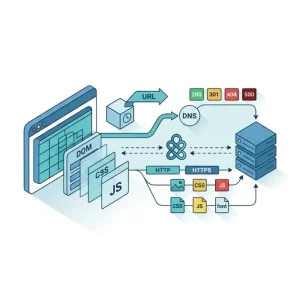
To build websites confidently, you need to understand what happens between a user typing a web address and a page appearing on their screen. This topic explains the main parts involved: browsers, servers, URLs, DNS, HTTP/HTTPS, and the request/response cycle.
1) The main players: Browser and Server
Browser (client)
A web browser (like Chrome, Edge, Firefox, or Safari) is the app that:
- Sends requests for web content
- Receives responses (HTML, CSS, JavaScript, images, etc.)
- Builds and displays the page to the user
The browser also provides tools like DevTools (inspect elements, network requests, console logs), which you will use often during development.
Server
A server is a computer (or cloud service) that:
- Stores website files and/or runs application code
- Listens for incoming requests
- Returns responses (pages, data, files)
Servers can be:
- Static: return files as-is (for example
index.html, images,style.css) - Dynamic: run code to generate a response (for example using Node.js, Python, PHP, etc.), often interacting with a database
2) URLs: The address of a resource
A URL (Uniform Resource Locator) tells the browser where to go and what to fetch.
Example URL:
https://www.example.co.za/products?category=shoes#sizes
Breakdown:
- Protocol (scheme):
https://
The rules for communication. Common ones arehttpandhttps. - Domain (host):
www.example.co.za
Human-friendly name that maps to an IP address. - Path:
/products
Which page/resource on the server you’re requesting. - Query string:
?category=shoes
Extra data sent to the server (often used for filters, search, pagination). - Fragment (hash):
#sizes
Used by the browser to jump to a part of the page. It is not sent to the server in a normal HTTP request.
3) DNS: Turning names into IP addresses
Computers on the internet find each other using IP addresses (like 203.0.113.10). Humans prefer names like example.co.za. DNS (Domain Name System) translates the name into the IP address.
When you visit a domain:
- The browser checks if it already knows the IP (from cache).
- If not, it asks DNS servers to look it up.
- DNS returns the IP address for that domain.
- The browser can now connect to the server at that IP.
Key idea: DNS is like the internet’s phone book.
4) HTTP and HTTPS: The communication rules
HTTP
HTTP (HyperText Transfer Protocol) is a set of rules for how requests and responses are structured.
HTTPS
HTTPS is HTTP with encryption using TLS (Transport Layer Security). It:
- Encrypts data (protects privacy)
- Helps prevent tampering in transit
- Confirms you’re talking to the right server (via certificates)
In real-world production websites, HTTPS is essential, especially for logins, payments, and any personal information.
5) The request/response cycle (step-by-step)
When a user visits a website, the process generally looks like this:
-
User enters a URL
Example:https://www.example.co.za -
Browser resolves DNS
Finds the server’s IP address. -
Browser opens a connection
- With HTTPS, the browser and server also perform a TLS handshake to set up secure encryption.
-
Browser sends an HTTP request
A request includes:- A method (what action you want)
- A path (what resource you want)
- headers (extra info)
- sometimes a body (data you send)
Common methods:
- GET: fetch a page or data
- POST: submit data (e.g. sign up form)
- PUT/PATCH: update data
- DELETE: remove data
-
Server processes the request
The server might:- Return a file (static)
- Run application code (dynamic)
- Query a database
- Check permissions (authentication/authorisation)
-
Server sends an HTTP response
A response includes:- A status code
- headers
- a body (HTML, JSON, image bytes, etc.)
-
Browser renders the result
If the response is HTML, the browser starts building the page and fetching additional resources.
6) Status codes: What the server is telling you
HTTP status codes help you understand what happened.
Common ones:
- 200 OK: request succeeded
- 201 Created: something new was created (often after POST)
- 301/302 Redirect: the resource moved (browser should go elsewhere)
- 400 Bad Request: client sent invalid data
- 401 Unauthorised: you’re not logged in (or missing valid credentials)
- 403 Forbidden: you are logged in but not allowed
- 404 Not Found: resource doesn’t exist
- 500 Internal Server Error: server crashed or code failed
- 503 Service Unavailable: server is down/overloaded/maintenance
When debugging, the Network tab in DevTools is where you’ll check requests, responses, and status codes.
7) What the browser does with HTML, CSS, and JavaScript
When the browser receives HTML, it doesn’t just “show it”. It processes it in stages:
-
Parse HTML → build the DOM
The DOM (Document Object Model) is a tree structure representing the page content. -
Download and parse CSS → build CSSOM
CSS becomes a structure describing styles. -
Combine DOM + CSSOM → render tree
The browser figures out what is visible and how it should look. -
Layout (reflow)
Calculates positions and sizes (especially important for responsive design). -
Paint
Draws pixels to the screen. -
JavaScript execution
JavaScript can:- Respond to user actions (clicks, typing)
- Update the DOM (change content)
- Fetch more data (AJAX/fetch)
- Trigger layout/paint again (if it changes what’s displayed)
Important note: Loading JavaScript can block page rendering if not handled properly. Later in the course you’ll learn practical techniques like defer, module scripts, and performance optimisation.
8) Multiple requests: A single page is many resources
Even a simple webpage often requires many resources:
- HTML file
- CSS files
- JavaScript files
- images, fonts, icons
- data requests (JSON APIs)
Each resource usually involves its own HTTP request/response, although modern browsers optimise this heavily (for example using HTTP/2 or HTTP/3, caching, and parallel downloads).
9) Caching: Faster loading for repeat visits
Browsers and servers use caching to avoid downloading the same resources repeatedly.
Two common ideas:
- Browser cache: stores files locally (CSS, images, JS)
- Cache headers: the server tells the browser how long a resource can be reused
Caching is great for performance, but during development you may sometimes need to hard refresh or disable cache in DevTools to see changes.
10) Quick practical check (use your browser tools)
Open a website and:
- Right-click → Inspect
- Go to Network
- Refresh the page
Look for:
- The first HTML document request
- Extra requests for CSS/JS/images
- Status codes (200, 304, 404)
- Whether requests are https
- Response headers like
content-type(e.g.text/html,application/javascript)
This is a real view of the request/response cycle.
Key takeaways
- The web works through clients (browsers) requesting resources from servers.
- URLs identify resources; DNS translates domain names to IP addresses.
- HTTP/HTTPS defines how messages are exchanged; HTTPS keeps them secure.
- A page load is a series of requests and responses, not just one.
- The browser renders pages by building the DOM, applying CSS, and running JavaScript.